
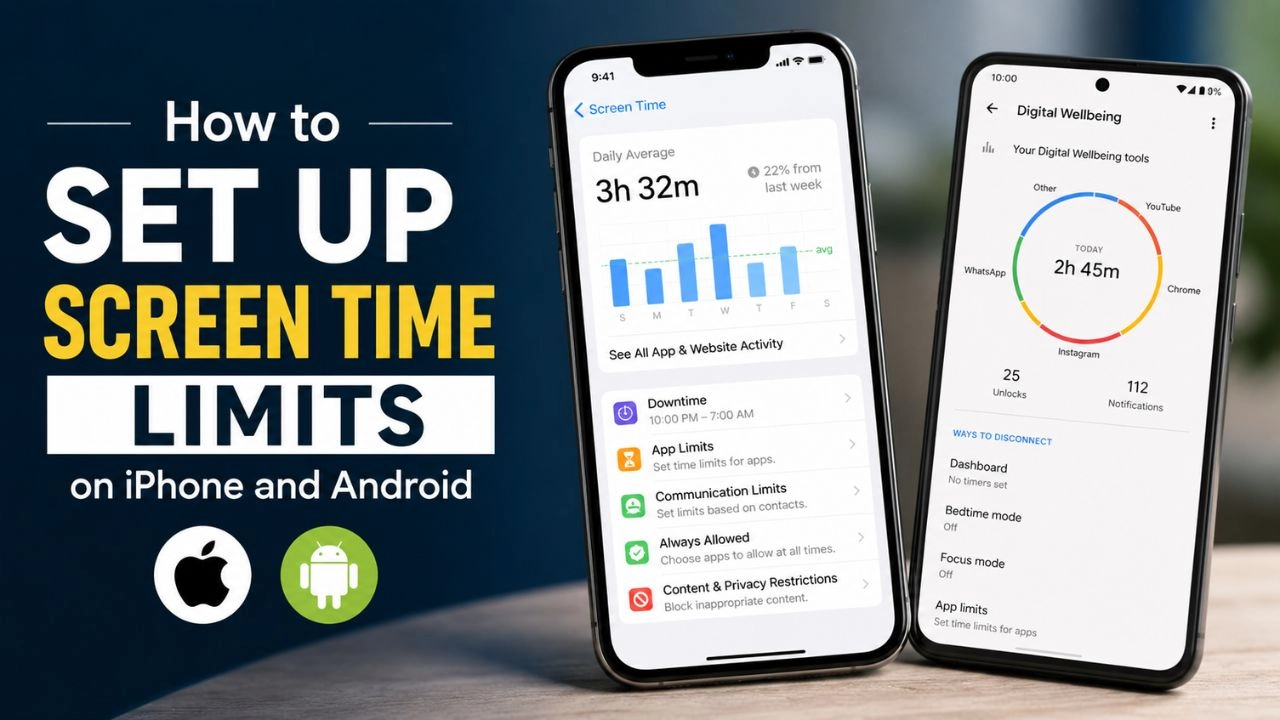
Before You Start: One Important Thing
Both iPhone and Android have free, built-in tools for setting screen time limits — no paid app required. Apple’s is called Screen Time. Google’s is called Family Link. They are more powerful than most parents realize, and setting them up properly takes about 15 minutes per device.
The single most important principle before you begin: set it up before handing the device over, not after. Limits introduced to a child who already has unrestricted access feel like punishment. Limits that exist from day one feel like normal rules.
A 2025 randomized controlled trial confirmed that reducing smartphone use to under two hours daily improved mood, stress levels, and sleep quality within just three weeks. The setup is worth it.
PART 1: iPhone — Apple Screen Time
Apple’s Screen Time is built into every iPhone running iOS 12 and later. iOS 26, released in September 2025, brought the biggest update to Screen Time since its 2018 launch — particularly for families, with complete app blocking now possible, stronger PIN protection, and in-app browser blocking during Downtime.
Step 1: Set Up Screen Time and Lock It With a PIN
This is the step most parents skip — and it is the reason their settings don’t hold.
- Go to Settings on your child’s iPhone
- Tap Screen Time
- Tap Turn On Screen Time
- Tap This is My Child’s iPhone
- Scroll down and tap Lock Screen Time Settings
- Create a 4-digit passcode — make it something your child doesn’t know
iOS 26 closed a longstanding bypass method: revoking Screen Time access now requires the Screen Time PIN rather than just Face ID or the device passcode. Without this PIN, your child can simply disable the limits themselves.
Step 2: Set Up Family Sharing (For Remote Management)
Family Sharing lets you manage your child’s Screen Time from your own iPhone — without ever touching theirs.
- On your iPhone, go to Settings > [Your Name] > Family Sharing
- Tap Add Member > Create Child Account
- Follow the steps to create or add your child’s Apple ID
- Once added, go to Settings > Screen Time > [Child’s Name] on your iPhone and you can configure all settings remotely and view their usage reports.
Children under 13 must have an account created through Family Sharing — they cannot create their own Apple ID independently.
Step 3: Schedule Downtime
Downtime blocks most apps during hours you set — perfect for bedtime and homework.
- In Screen Time, tap Downtime
- Toggle it On
- Tap Scheduled
- Set start and end times — for example, 9 PM to 7 AM
- You can customize different times for weekdays vs weekends
During Downtime, only calls, messages, and apps you choose to allow are available. Emergency calls always remain available regardless of settings.
Make it stick: Enable “Block at End of Limit” — go to Settings > Screen Time > App Limits, tap each limit, and make sure this toggle is on. Without it, your child sees a prompt and can tap “Ignore Limit” to continue anyway.
Step 4: Set App Limits
App Limits set daily time budgets for specific apps or entire categories.
- In Screen Time, tap App Limits > Add Limit
- Select a category — Social Networking, Games, Entertainment — or tap into a category to select individual apps
- Set the daily time allowed
- Tap Add
For tighter control: tap Customize Days to set different limits on weekdays versus weekends.
Most useful limits to set:
- Social Networking: 30–60 minutes on school days
- Games: 60–90 minutes
- Entertainment (YouTube, streaming): 60 minutes on school days
Step 5: Content and Privacy Restrictions
These block age-inappropriate content across the entire device.
- In Screen Time, tap Content & Privacy Restrictions and toggle it On
- Tap Content Restrictions > Apps — set maximum app age rating (9+, 12+, or 17+)
- Tap Web Content > Limit Adult Websites — filters adult content in all browsers
- Under iTunes & App Store Purchases, set In-App Purchases to Don’t Allow
Under Content & Privacy Restrictions you can block mature apps, movies, TV shows, and music by age rating. It also filters explicit content in Apple Music, restricts adult websites, and limits Safari to approved-only sites.
Step 6: Lock Other Apps With Communication Limits
- In Screen Time, tap Communication Limits
- Set who your child can call and message — Contacts Only is the safest option
- This applies to Phone, FaceTime, Messages, and supported third-party apps
Quick iPhone Screen Time Summary
| Setting | Where to Find It | What It Does |
|---|---|---|
| Screen Time PIN | Settings > Screen Time > Lock Screen Time Settings | Prevents child turning off limits |
| Downtime | Screen Time > Downtime | Blocks most apps during set hours |
| App Limits | Screen Time > App Limits | Daily time budgets per app or category |
| Content Restrictions | Screen Time > Content & Privacy | Blocks age-inappropriate apps and web content |
| Communication Limits | Screen Time > Communication Limits | Controls who child can contact |
PART 2: Android — Google Family Link
Google Family Link is the best parental control tool for Android, giving parents direct oversight of their child’s screen time, app downloads, and location from a single app — and it is completely free.
Step 1: Download Family Link and Set It Up
- Download Google Family Link on your Android or iPhone from the App Store or Google Play
- Open the app and tap Get Started
- Select Parent and sign in with your Google account
- Follow the prompts to either create a new Google Account for your child or link an existing one
- On your child’s Android device, sign in with their Google account and complete the supervision prompts. Stay with your child during setup so permissions and restrictions are clear.
Once connected, Family Link runs quietly in the background and enforces whatever rules you’ve set. Your child can see when limits are reached but cannot override them without your approval.
Step 2: Set a Daily Screen Time Limit
- Open the Family Link app on your phone
- Tap your child’s name at the top left
- Tap Screen Time > Time Limits > Weekly Schedule
- Select a day and enter the daily limit
- Tap Apply to All Days if you want the same limit every day — or customize each day separately
When the time limit is reached, your child gets a notification. They can then request bonus time from you — which you approve or deny from your own phone. Daily limits apply per device, not across all devices combined.
Step 3: Set Downtime (Bedtime / School Time)
- In Family Link, tap Screen Time > Schedules
- Toggle on Downtime
- Tap Weekly Schedule and set bedtime hours for each day
- Separately, toggle on School Time to automatically block the phone during school hours
Downtime blocks most device use during scheduled hours. Use it for bedtime or homework periods. During Downtime, emergency calls always remain available.
Step 4: Set App-Specific Limits
Beyond a total daily budget, you can limit individual apps:
- In Family Link, tap Screen Time > Time Limits > App Limits
- Select the app you want to limit
- Tap Set Limit and choose hours and minutes
- Tap Done
App limits are better than blocking everything — you can keep useful apps available while limiting games, video, or social apps specifically. Apps like Google Maps or your child’s school app can be set to Unlimited time so they are never blocked.
Step 5: Approve App Downloads and Purchases
- In Family Link, tap Controls > Content Restrictions
- Under Google Play, set age-appropriate content ratings for apps, games, movies, and books
- Toggle on Require approval for purchases — your child cannot download or buy anything without you approving it first on your phone
Turn on purchase approval so the child cannot buy paid apps, subscriptions, or in-app items without permission.
Step 6: Enable Location Tracking
- In Family Link, tap Location > Set Up Location
- Select your child and follow the prompts
- You can now see their device location from the Family Link app whenever their device is online
Quick Android Family Link Summary
| Setting | Where in Family Link | What It Does |
|---|---|---|
| Daily Time Limit | Screen Time > Time Limits | Total daily device budget |
| Downtime | Screen Time > Schedules > Downtime | Blocks device during bedtime/school |
| School Time | Screen Time > Schedules > School Time | Blocks device during school hours |
| App Limits | Screen Time > Time Limits > App Limits | Per-app daily time budgets |
| Content Restrictions | Controls > Content Restrictions | Age-appropriate app/game ratings |
| Purchase Approval | Controls > Content Restrictions | Requires your OK for every download |
| Location | Location > Set Up | See child’s device location |
The Bypass Problem — And How to Close It
Both systems have known workarounds that tech-savvy teenagers discover quickly. Here is how to close the most common ones:
iPhone bypass — deleting and reinstalling apps: A child can delete an app, reinstall it, and the App Limit timer resets. Fix: go to Content & Privacy Restrictions > iTunes & App Store Purchases > Deleting Apps and set to Don’t Allow.
iPhone bypass — changing the clock: Changing the device time used to reset Screen Time schedules. iOS 26 added PIN-protected permissions — revoking Screen Time access now requires the Screen Time PIN, closing this longstanding bypass method. Make sure your Screen Time passcode is set
Android bypass — factory reset: A determined teenager can factory reset the device to remove Family Link. Fix: enable Device Admin permissions in Family Link, which require parent authorization before a reset. Keep your Parent Access Code (PAC) separate from your child.
Both platforms: Using a browser to access the web during app Downtime was a bypass on older systems. iOS 26 now blocks in-app browser windows even for apps allowed during Downtime. On Android, Family Link blocks Chrome during Downtime automatically.