
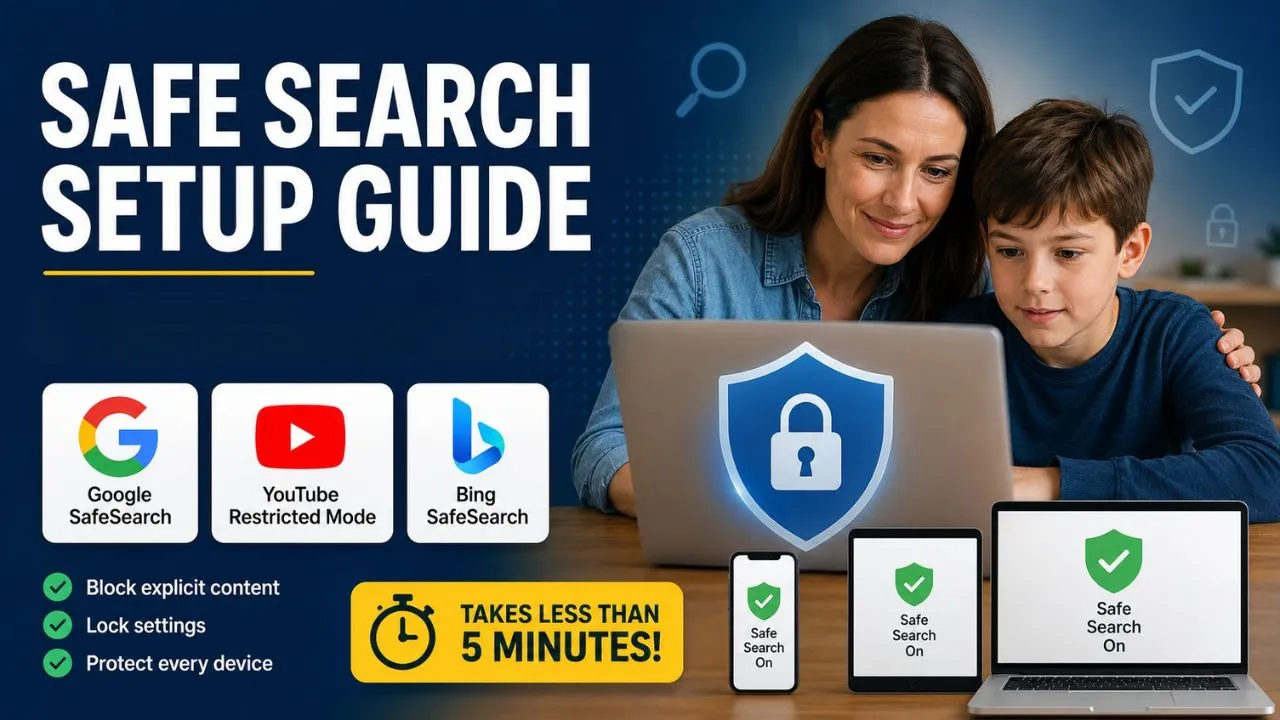
The First Line of Defense — And the One Most Parents Skip
Safe Search is one of the simplest, most effective things you can do to reduce your child’s exposure to inappropriate content online — and it takes less than five minutes to set up on every device they use.
Yet most parents either don’t know about it, assume it’s already on, or set it once on one device and never check again. The result: a child who types an innocent word into a search engine and lands on content no parent would choose to show them.
This guide covers every step, on every platform, for every device — and the critical limitations you need to know so you’re not relying on Safe Search to do more than it can.
What Is Safe Search?
Safe Search is a built-in content filter on search engines and video platforms that automatically screens out explicit, adult, and inappropriate content from search results. When it is active, searching for any term — however innocent or accidental — is far less likely to return pornographic images, violent videos, or disturbing content.
It works on Google Search, YouTube, and Microsoft Bing — the three platforms where children most commonly encounter unintended explicit content.
Important: Safe Search is a filter, not a firewall. It significantly reduces exposure to inappropriate content — it does not eliminate it. And it only applies to the platform it is set on — not to other apps, websites, or browsers on the same device.
Part 1: Google SafeSearch
On a Desktop or Laptop Browser
- Go to google.com
- Click Settings in the bottom-right corner of the homepage
- Select Search Settings
- Under SafeSearch, check the box that says Turn on SafeSearch
- Scroll down and click Save
You will see a colored ball icon appear in the top-right corner of Google Search confirming SafeSearch is active.
Important limitation: This setting applies to that specific browser on that specific device only. If your child uses Chrome, Firefox, and Safari, you need to set it in each one separately.
How to Lock SafeSearch So Your Child Cannot Turn It Off
Basic SafeSearch can be disabled by anyone — including a tech-savvy child. To lock it:
- Sign in to a Google Account on the device
- Go to google.com/safesearch
- Turn SafeSearch on
- If your child uses a Google Account managed through Google Family Link, SafeSearch is locked automatically and cannot be turned off without parent permission
Google Family Link also locks SafeSearch on Google Search and Google Chrome, preventing children from disabling it on managed accounts. If your child is under 13, setting up a supervised Family Link account is the most reliable way to keep SafeSearch permanently active.
On iPhone or iPad (Safari)
SafeSearch in Safari on iOS is set through Screen Time, not through Google directly:
- Go to Settings > Screen Time
- Tap Content & Privacy Restrictions — turn it on if not already active
- Tap Content Restrictions > Web Content
- Select Limit Adult Websites
This filters adult content across all browsers on the device — not just Google — and cannot be turned off without your Screen Time passcode.
On Android
- Open the Google app or go to google.com in Chrome
- Tap your profile picture (top right) > Settings
- Tap SafeSearch
- Select Filter (the most protective option) or Blur
- Tap Save
For a locked solution on Android, use Google Family Link — this enforces SafeSearch and prevents your child from changing it.
Part 2: YouTube Restricted Mode
YouTube has its own separate content filter called Restricted Mode — SafeSearch on Google does not affect YouTube. You need to set this independently.
Restricted Mode filters out mature content from YouTube search results, recommendations, and autoplay — including videos with strong language, violence, and adult themes.
On a Desktop Browser
- Go to youtube.com
- Click your profile picture (top right)
- Scroll down to Restricted Mode: Off
- Click it and toggle it On
Lock it so your child cannot disable it:
- Sign in to your Google Account first
- Enable Restricted Mode as above
- Click Lock Restricted Mode on this browser
Once locked, Restricted Mode cannot be turned off without signing in to your Google Account.
On iPhone or iPad (YouTube App)
- Open the YouTube app
- Tap your profile picture (top right)
- Tap Settings
- Tap Restricted Mode
- Toggle it On
Note: This locks to the specific account signed in. If your child signs into a different Google Account, Restricted Mode will reflect that account’s settings.
On Android (YouTube App)
Same steps as iPhone — profile picture > Settings > Restricted Mode > On.
The Best YouTube Safety Option for Children Under 13
For children under 13, YouTube Kids is significantly safer than enabling Restricted Mode on regular YouTube. Restricted Mode filters content — it does not eliminate all risk. YouTube Kids provides a dedicated children’s environment with a curated library.
For a full comparison, see our guide on YouTube Kids vs. YouTube: What Parents Need to Know.
Part 3: Bing SafeSearch
Microsoft Bing has three SafeSearch levels: Strict, Moderate, and Off. For children, always set to Strict.
On a Desktop Browser
- Go to bing.com
- Click the three-dot menu (⋯) or Settings in the top-right corner
- Select SafeSearch
- Choose Strict
- Click Save
Lock Bing SafeSearch Via Microsoft Family Safety
To prevent your child from changing the setting:
- Sign in to your Microsoft account at account.microsoft.com/family
- Add your child’s Microsoft account to your family group
- Go to Screen Time > Content Filters
- Bing will now enforce SafeSearch automatically when your child is logged into their Microsoft account — even across devices.
This is the most reliable method because it follows the account, not the device.
On Microsoft Edge (Browser Settings)
- Open Microsoft Edge
- Go to Settings > Privacy, Search, and Services
- Scroll to Services > Address bar and search
- Under Search in the address bar, go to Bing settings and set SafeSearch to Strict
Quick Reference: All Three Platforms at a Glance
| Platform | Setting Name | Levels Available | Lockable? | Best Lock Method |
|---|---|---|---|---|
| Google Search | SafeSearch | Filter / Blur / Off | Yes | Google Family Link |
| YouTube | Restricted Mode | On / Off | Yes | Sign-in lock or YouTube Kids |
| Bing | SafeSearch | Strict / Moderate / Off | Yes | Microsoft Family Safety |
What Safe Search Cannot Do — Be Honest About the Limits
Safe Search is a valuable first layer — but parents who rely on it alone will be disappointed:
- It only works on the platforms you set it on — Google SafeSearch does not filter Bing, Yahoo, or DuckDuckGo on the same device
- A child using a different browser bypasses it — unless you use device-level controls (Family Link, Screen Time) that lock it across all browsers
- It does not filter social media — Instagram, TikTok, Snapchat, Reddit, and Discord are not covered by any search engine Safe Search setting
- It is not 100% effective — Google, Bing, and DuckDuckGo control which content is filtered, and some inappropriate content may still occasionally get through even with SafeSearch active.
- VPNs can bypass it — a teenager using a VPN app can circumvent DNS-level filtering
For stronger, device-wide protection, combine Safe Search with a dedicated parental control app.
Our guide on best parental control apps of 2026: tested and ranked covers which apps lock SafeSearch across all platforms and add social media monitoring.
The Fastest Setup — Do This Right Now
If you want to protect every device in under 15 minutes:
iPhone/iPad: Settings > Screen Time > Content & Privacy Restrictions > Web Content > Limit Adult Websites. Done — covers all browsers.
Android: Set up Google Family Link on your child’s device — locks Google SafeSearch and Restricted Mode automatically.
Windows PC: Set up Microsoft Family Safety at account.microsoft.com/family — locks Bing SafeSearch across Edge and any signed-in browsing.
Any device (additional layer): Enable Restricted Mode on YouTube directly — it is separate from all search engine settings and must be done independently.
The Bottom Line
Safe Search is not optional — it is the baseline. Every device your child uses to access the internet should have SafeSearch active on Google, Restricted Mode on YouTube, and Strict mode on Bing. It takes minutes, it is free, and it significantly reduces the chance of your child stumbling onto content no parent would want them to see.
Set it up today, lock it so it cannot be disabled, and remember that it is the first line of defense — not the last.