
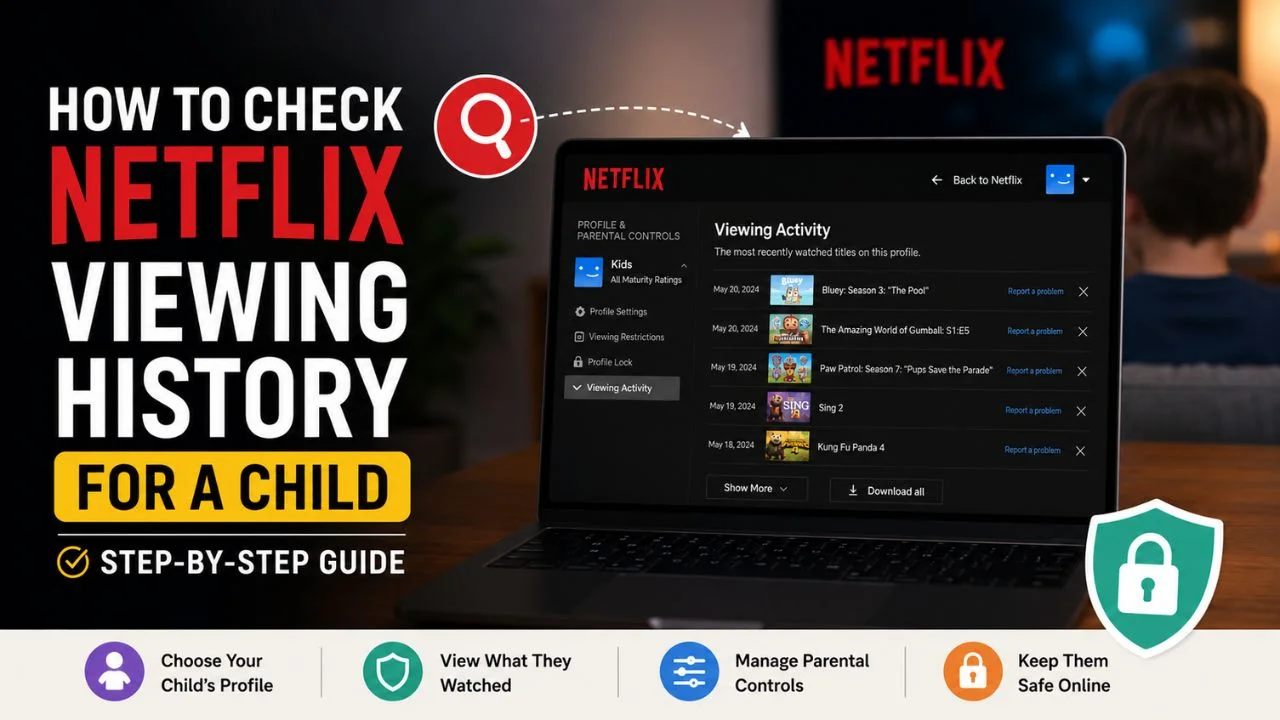
Why Checking Matters More Than You Think
Netflix’s parental controls are genuinely useful — but they are not perfect. Age-based filters can occasionally let content slip through, thumbnails and autoplay previews can expose children to mature imagery before a parent has reviewed a show, and older children are often more tech-savvy than parents realize when it comes to switching profiles.
Netflix’s own filters aren’t perfect — checking viewing history periodically is how parents catch anything that slips through. The good news: Netflix gives you clear, easy access to everything your child has watched. This guide shows you exactly how — on every device — plus the additional controls worth setting up while you’re there.
Step 1: Check Viewing History on a Web Browser (Easiest Method)
This is the most complete way to see your child’s full watch history. It only works through a web browser — not the Netflix app.
- Open netflix.com in any browser and sign in to your account
- Click your profile icon in the top-right corner
- Select Account from the dropdown menu
- Scroll down to Profile & Parental Controls
- Click the arrow (▼) next to your child’s profile name to expand their settings
- Click Viewing Activity
Netflix shows every title your child opened, including shows they only half-watched, alongside the date it was accessed. It updates in real time. You can scroll through the full list or download it — there is a Download All option that saves their entire watch history to your computer.
If you spot something concerning, click the X next to any title to remove it from their history. If something seems misrated for their age, you can report it directly from this screen.
Step 2: Check Viewing History on Mobile (iPhone, iPad, Android)
The mobile app has a slightly different path:
- Open the Netflix app
- Tap My Netflix in the bottom-right corner
- Tap the Menu icon (three lines, top-right)
- Tap Account — this opens netflix.com in your browser
- Follow the same steps as above: Profile & Parental Controls → your child’s profile → Viewing Activity
There is no in-app shortcut to viewing history — it always routes through the website.
Step 3: Check on Smart TV or Streaming Device
You cannot check the viewing history directly on a TV. All history access requires a web browser. If you want to check after your child has been watching on the family TV:
- Open netflix.com on your phone or laptop
- Follow the browser steps above
- The history is the same regardless of which device they watched on — it is tied to the profile, not the device
The 5 Controls Worth Setting Up Right Now
While you are in the Account settings, these five steps take less than ten minutes and make a significant difference:
1. Set a Maturity Rating for Your Child’s Profile
In Profile & Parental Controls, click Viewing Restrictions under your child’s profile. Set the maximum maturity level — Little Kids (TV-Y), Older Kids (TV-Y7, TV-G), Teen (TV-PG, TV-14), or Mature (TV-MA). Netflix automatically blocks any title above the rating you choose.
2. Block Specific Titles
Even if a show technically falls within your child’s maturity rating, you can block individual titles you don’t want them to watch. In Viewing Restrictions, scroll down to Title Restrictions and search for any specific show or movie to block it.
3. Lock Other Profiles With a PIN
Profile Lock PINs stop children from switching to adult profiles and bypassing your parental controls. In Profile & Parental Controls, click Profile Lock under each adult profile and set a 4-digit PIN. Your child will need that PIN to access any locked profile. You can also require a PIN to add new profiles, preventing your child from creating a new unrestricted profile as a workaround.
4. Turn Off Autoplay Previews
Netflix automatically plays video previews on the home screen — including for titles your child cannot access. These previews can contain mature imagery even before a child clicks on anything. To disable them:
- Go to your child’s profile settings
- Uncheck Autoplay previews while browsing
5. Turn Off Autoplay Next Episode
The “are you still watching?” prompt was designed specifically to interrupt binge-watching. Autoplay next episode removes it. Turn it off in your child’s profile settings under Playback Settings — uncheck Autoplay next episode in a series.
What Netflix’s Controls Cannot Do
Being honest about the limitations saves frustration later:
- Viewing history only shows what was opened — not how long it was actually watched or at what point they stopped
- Netflix profiles are not password-protected for children — only adult profiles can be PIN-locked. Your child can still access their own profile freely, or any unlocked profile on the account
- Thumbnail images and search results can still surface mature content artwork even on a restricted profile — though Netflix has improved this significantly
- Netflix does not notify you in real time when your child watches something — it is a history tool, not a live alert system. For real-time alerts, a third-party app like Bark is required
- Downloaded content — shows downloaded for offline viewing appear in history once downloaded, but parents cannot restrict downloads separately from streaming
If you want real-time alerts across Netflix and other platforms, our guide on the best parental control apps of 2026: tested and ranked, covers which apps monitor streaming activity.
Netflix Kids Profile vs. Standard Profile — Know the Difference
Netflix offers two types of child-friendly setups, and they work very differently:
| Kids Profile | Standard Profile With Restrictions | |
|---|---|---|
| Content | Only shows/movies made for children | All content up to your chosen rating |
| Search | Limited to children’s content only | Full Netflix library visible |
| Browsing | Simplified kids interface | Standard Netflix interface |
| PIN to exit | Yes — requires PIN to leave Kids mode | No |
| Viewing History | Accessible via Account on web | Accessible via Account on web |
For children under 10: A Kids Profile is the stronger choice — it uses a simplified interface and completely restricts the browsing experience to age-appropriate content.
For teenagers: A standard profile with maturity rating and PIN-locked adult profiles gives more flexibility while maintaining meaningful restrictions.
How Often Should You Check?
A practical approach that doesn’t feel like surveillance:
- Weekly — quick scan of viewing activity, takes two minutes
- When a new show appears in recommendations, their algorithm is shaped by what they watch. Unexpected recommendations can tell you something about recent viewing habits
- After any period of unsupervised access — school holidays, sleepovers, where they had the TV to themselves
- When their maturity rating needs updating — as children grow, reviewing and adjusting the rating annually keeps it appropriate
The Bottom Line
Netflix gives parents genuinely useful tools — viewing history, maturity ratings, title blocking, and PIN-locked profiles. Using them together is how you get the most out of Netflix’s parental controls — no single setting is sufficient on its own.
The five-minute setup — maturity rating, title restrictions, profile PIN locks, autoplay off — closes the biggest gaps. Weekly viewing history checks keep you informed without making it feel like constant surveillance. And when something does slip through, the reporting tool ensures Netflix’s ratings team hears about it.
Checking what your child watches on Netflix is not about distrust. It is about staying connected to their world — and that is always time well spent.
For a broader look at how streaming platforms set their age ratings, read our guide on why age ratings differ between countries: US vs UK vs India.