
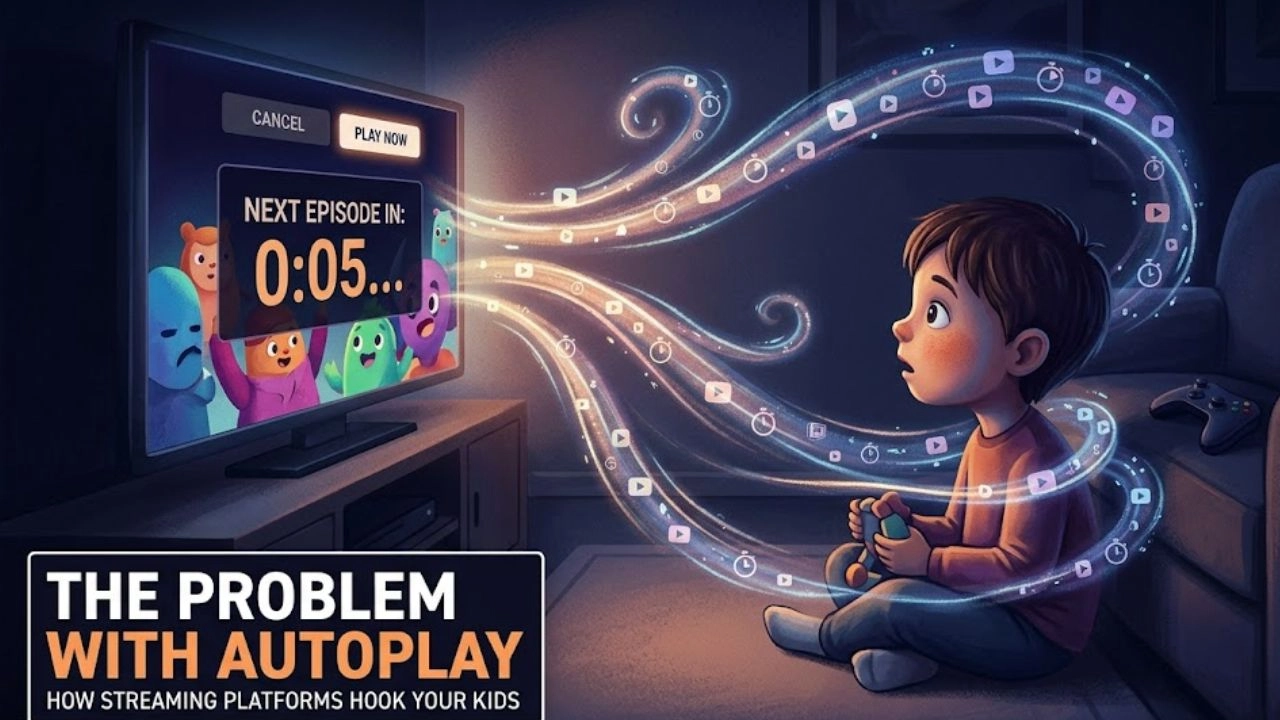
Think back to the last time your child finished watching one episode and the next one simply… started. No click. No decision. Just a countdown, and then sound and motion, pulling them back in before they’d even had a chance to think about getting up.
That is autoplay. And it is not an accident of good design — it is one of the most carefully engineered features in modern streaming, built specifically to remove the natural moment where a viewer might choose to stop.
Researchers have a name for this category of design: attention capture damaging patterns, or ACDPs — a recognized subset of what the tech industry calls “dark patterns.” These are design elements specifically built to arrest user attention, and they have been shown to contribute to stress, reduced productivity, and addiction-like behaviors that affect users’ mental wellbeing and overall health. Autoplay sits at the center of this category — and in 2025, researchers finally proved, with hard data, just how powerful it really is.
What the Science Actually Found
This is not speculation. In April 2025, researchers from the University of Chicago published one of the first rigorous experimental studies measuring autoplay’s real effect on viewing behavior — using actual Netflix accounts, not surveys or self-reported estimates.
The study found that disabling autoplay on Netflix significantly reduced key content consumption measures, including average daily watching time and average session length. In plain terms: when autoplay was switched off, people watched meaningfully less — both in any given sitting and across the day as a whole.
This matters enormously because it answers the question streaming companies have always been able to avoid: is autoplay just convenient, or is it actually manipulating how much we watch? The research is part of a growing body of academic work on dark patterns — manipulative interface designs that have potentially detrimental effects on user autonomy, with autoplay specifically and repeatedly singled out as one of the most ubiquitous and harmful examples.
Researchers note that autoplay is usually activated by default and can be hard to deactivate — a design choice, not an oversight. The setting that is doing the most to shape your child’s viewing habits is one almost no platform makes easy to turn off, and one virtually no platform turns off by default.
Why This Matters Specifically for Children
Adults have at least some practiced capacity to interrupt automatic behavior — to notice “I should really stop” and act on it, even imperfectly. Children and teenagers, whose prefrontal cortex (the brain region responsible for impulse control and weighing long-term consequences) is still years from full development, have significantly less of this capacity.
This is precisely why autoplay is not a neutral feature for a child, the way it might be for an adult. Research on streaming UI design has highlighted the adverse effects of excessive video watching, which include increased anxiety, sleep deprivation, and physical fatigue, and extended viewing sessions have also been linked to depression-related symptoms.
A child who has finished one episode is, neurologically, in exactly the position autoplay is designed to exploit: a brief window where a decision could be made, immediately overridden before that decision-making process has a chance to occur.
For the deeper neuroscience behind why children’s brains are especially vulnerable to these design patterns, see our guide on how social media changes the teenage brain — what neuroscience says.
How Autoplay Actually Works — Platform by Platform
Netflix: Autoplays the next episode in a series automatically after a short countdown. Also autoplays preview clips on the home screen as you browse — before you’ve clicked on anything.
YouTube: Autoplays the next recommended video after the current one ends — and these recommendations are generated by an engagement-maximizing algorithm, not a simple “next episode” logic. This is arguably the most aggressive version of autoplay across any major platform, because each video is chosen specifically to keep you watching, not because it is the “next” item in any sequence.
Disney+: Autoplays the next episode by default, with a short skip window.
Amazon Prime Video: Same pattern — automatic episode progression with a brief countdown to skip.
YouTube Kids: Also includes autoplay by default, despite being marketed as the safer, child-specific version of YouTube.
In every case, the default is on. In every case, turning it off requires a parent to actively go looking for the setting.
The “Are You Still Watching?” Illusion
Many parents assume the periodic “Are you still watching?” prompt that interrupts long viewing sessions is a built-in safeguard — a moment of friction designed to make children pause and reconsider.
Researchers studying these interfaces have specifically catalogued this prompt alongside autoplay timers with no exit options, infinitely scrolling recommendations, instant-start video previews, and incomplete timestamps — describing it as part of the same family of design patterns that disregard user wellbeing rather than protect it.
In practice, the prompt requires only a single tap or click to dismiss — often the same gesture used to skip the autoplay countdown — meaning it functions less as a genuine check-in and more as a minor speed bump on the way to continued, uninterrupted viewing.
What This Has to Do With Binge-Watching Culture
Academic researchers tracing the modern phenomenon of binge-watching point directly to autoplay as a key driver in its normalization and rapid growth as streaming services scaled. Before autoplay existed, watching multiple episodes in a row required a series of small, repeated decisions — and each one was an opportunity to stop. Autoplay collapsed those decision points into a single, much weaker one: do nothing, and the next episode simply happens.
This is why a feature that seems purely about “convenience” has such an outsized effect on total viewing time. It isn’t adding anything to the experience — it is removing the natural pauses that used to exist within it.
How to Turn Off Autoplay on Every Major Platform
The good news: turning autoplay off takes about a minute per platform, once you know where to look.
Netflix (Web):
- Go to Account settings
- Click on your child’s profile
- Find Playback Settings
- Uncheck Autoplay next episode in a series
- Also uncheck Autoplay previews while browsing while you’re there
YouTube (Web and App):
- Open a video
- Look for the Autoplay toggle near the video player (a switch icon, usually top-right of the player on desktop)
- Switch it off
- Note: this setting is often per-session on some devices — check it periodically
Disney+:
- Go to Profile
- Tap Edit Profiles
- Select your child’s profile
- Toggle off Autoplay
Amazon Prime Video:
- Go to Settings within the app
- Find Autoplay
- Toggle it off (note: availability varies by device — some smart TVs require the setting to be changed through the Amazon website rather than the TV app)
YouTube Kids:
- Open the app
- Tap the lock icon and enter your parental passcode
- Go to Settings
- Turn off Autoplay
Beyond the Off Switch: Building Better Viewing Habits
Turning off autoplay is the single highest-impact, lowest-effort change you can make — but it works best alongside a few other habits:
- Agree on episode counts in advance, not in the moment. “Two episodes” decided before the show starts is far easier to hold than a decision made mid-binge, when the autoplay countdown is already running.
- Use physical cues to mark a real stopping point — turning off the TV, closing the laptop, leaving the room — rather than relying on willpower alone once the next episode has already started playing.
- Watch the home screen, not just the show. Preview autoplay on browsing screens exposes children to content — sometimes age-inappropriate — before they’ve actively chosen anything. Disabling this is just as important as disabling episode-to-episode autoplay.
- Check settings periodically, not once. App updates occasionally reset preferences. A quick monthly check ensures the setting you turned off months ago is still off.
For a complete walkthrough of all of Netflix’s parental controls beyond autoplay, see our guide on how to check what your child is watching on Netflix.